
Reseat A Student
The 'reseat session' Action from the Proctor Dashboard logs the student out of their testing session and allows them to log back in.
There are specific reasons why a proctor might need to reseat a student, like the student exited the lockdown browser and is in a 'Breached' state or their computer session expired. There are other non-specific reasons where reseating can resolve an issue a student is having with navigation in the test.
- From the Proctor Dashboard find the student you need to reseat.
How do I log into the Proctor Dashboard as a Proctor - Find the Action buttons on the right side of the page
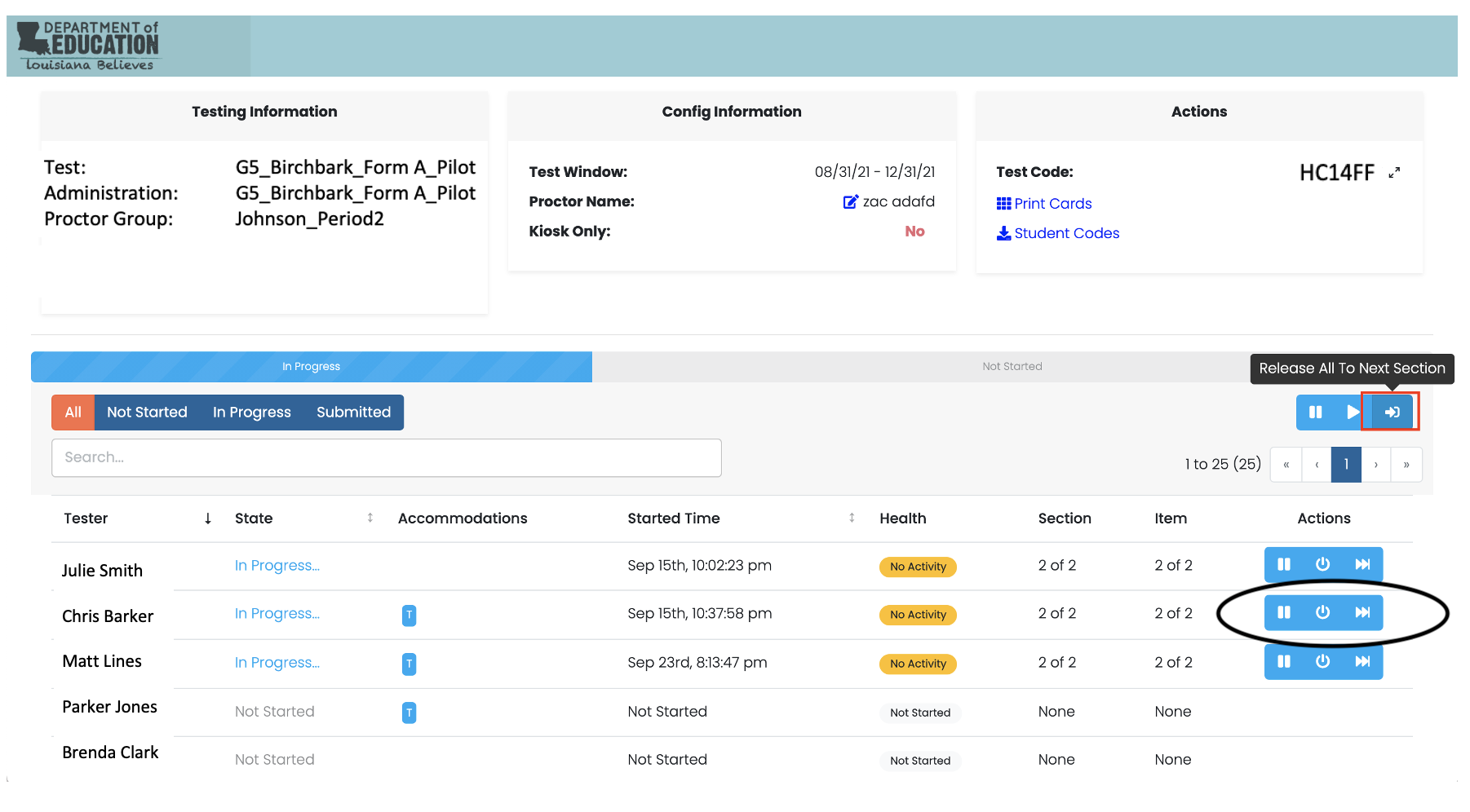
- Click the 'reseat session' button

- You will receive a warning message, choose the Reseat button to continue

- The student State changes from 'In Progress' or 'Breached' to 'Reseat'

- Your student is notified that they should log back into the test session. Have them retry their login.
Unsubmit and Reseat a Student
If the student is still unable to log into the test, we next will try a more thorough reset of the student's session by; submitting the session, unsubmitting the session and then reseating the session.
-
Choose the "Submit Session" button

-
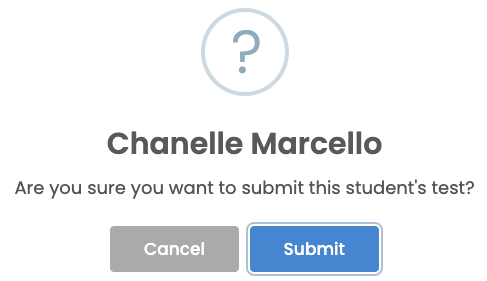
Choose the "Submit" button
-
Choose the "Unsubmit Session" button

-
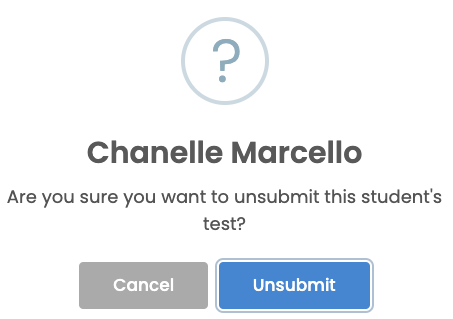
Choose the "Unsubmit" button
-
Choose the "Reseat Session" button

-
Choose the "Reseat" button
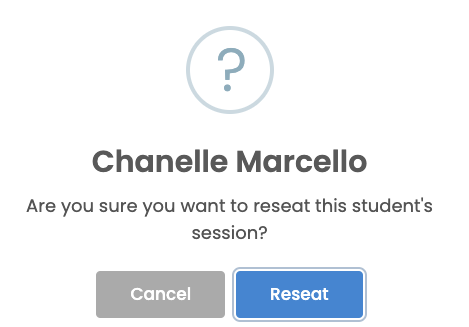
- Your student is now reseated and should be able to log into the test.
If the student is still unable to log into their test, please contact support for further help.
Comments
0 comments
Please sign in to leave a comment.