
ADAM Accessibility Tools
Once a student has started an assessment, the Accessibility Tools Menu is located on the right side of each screen, within the Test Supports toolbar. This menu can be accessed by the test-taker at any time during the assessment session.
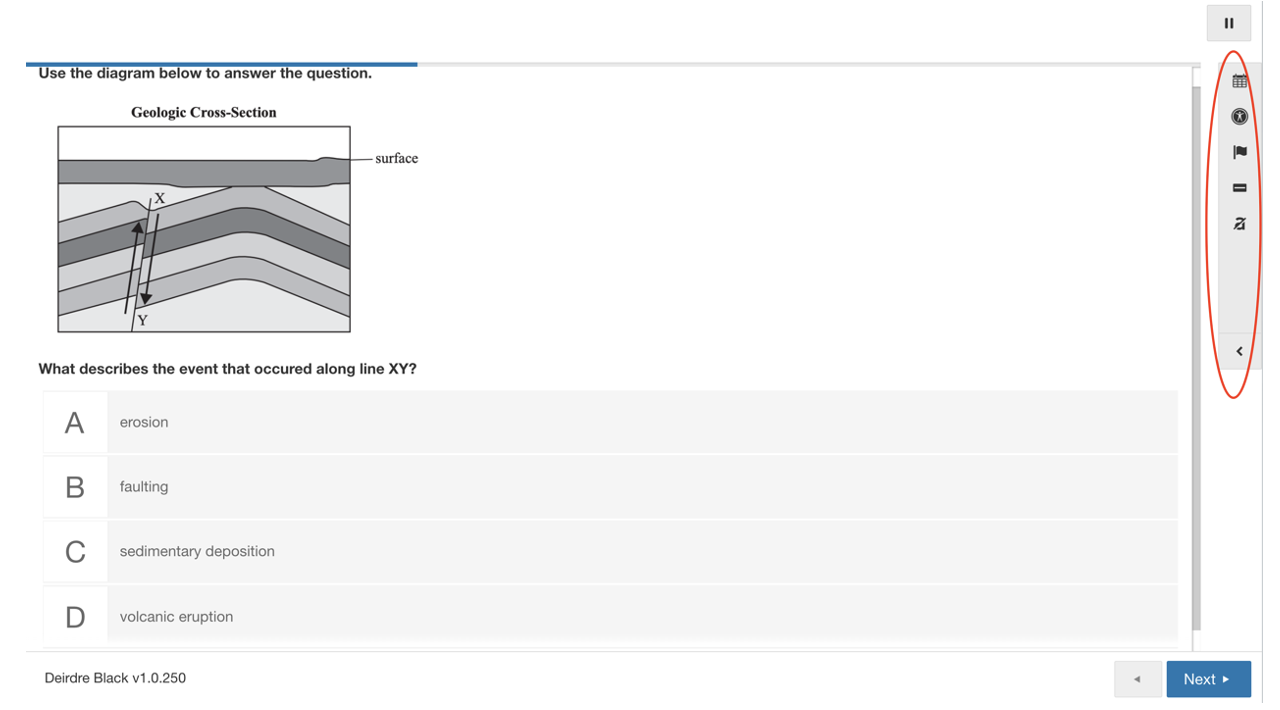
The Accessibility Tools Menu can also be expanded by selecting the arrow icon at the toolbar's bottom.
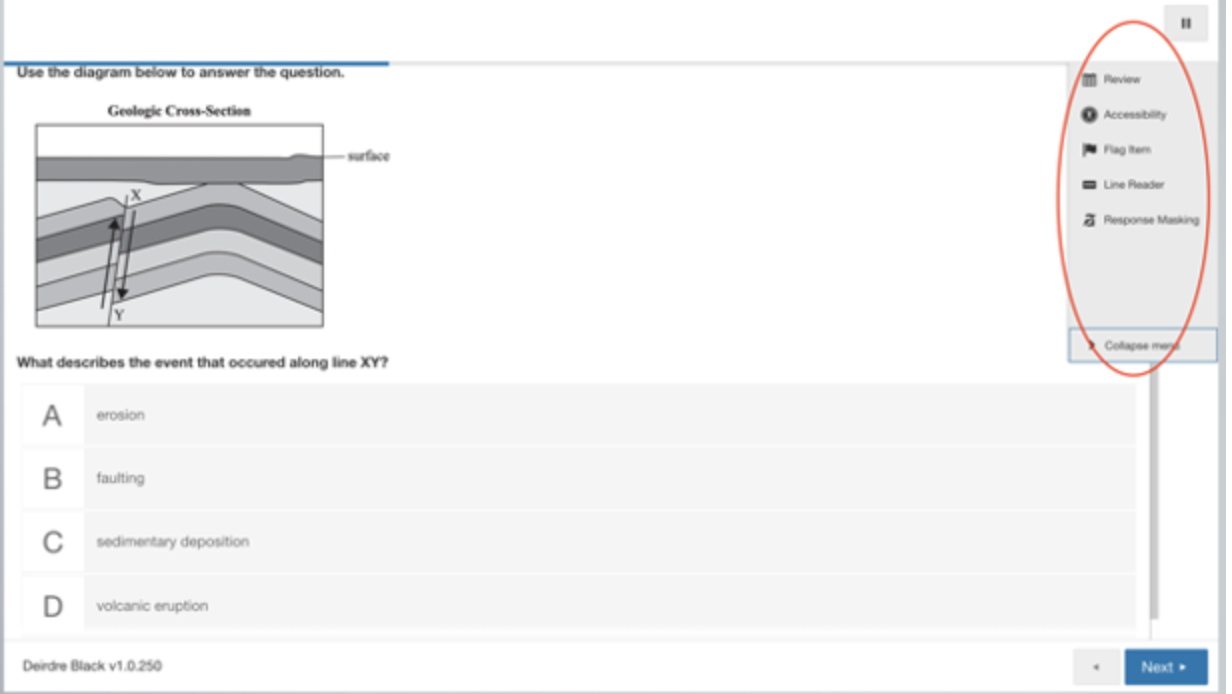
Accessibility Tools Menu
Test takers can set preferences for many of the tools that will persist from screen to screen (question to question) during an assessment session.
After a disruption, students must reselect their preferred settings each time they log in to a new session or rejoin a session.
 |
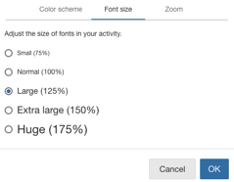
The accessibility menu provides options to:
|
|
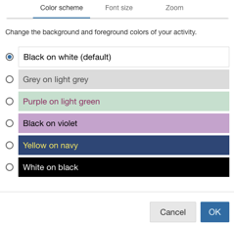
Color Scheme (Color Contrast) |
|
|
Font Size |
|
|
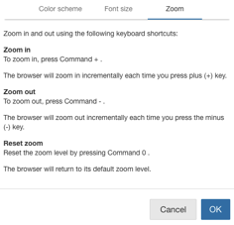
Zoom |
 |
Note:
- Trackpad pinch gestures to zoom in and out are NOT ENABLED in the ADAM Lockdown Browser.
- Pinch gestures to zoom in and out are ENABLED for touch screen devices.
Text to Speech (TTS) Support
Text to Speech (TTS) tools are available in ADAM to read aloud the text on the screen. Depending on client preference, the TTS accommodation may need to be pre-selected by the District Assessment Coordinator (DAC) or School Assessment Coordinator (SAC) and must be indicated in the student’s record within ADAM at the time of Rostering the student for each assessment session in order for the Text to Speech tool to appear on screen for the student during the assessment session.
ADAM displays the TTS control bar at the top of the screen for each assessment question when Text to Speech (TTS) has been enabled by the DAC/SAC for the test taker’s use during an assessment.

Text to Speech (TTS) Controls Menu
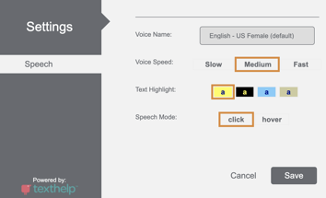
Test takers can set preferences for different aspects of the Text to Speech tool that will persist from screen to screen (question to question) during an assessment session.
After a disruption, students must reselect their preferred settings each time they log in to a new session or rejoin a session.
 |
|
|
|
The text to speech player enables features for TTS |
||
 |
Select to collapse or expand the TTS toolbar |
|
 |
Select to start TTS, then select anywhere in the text to start reading aloud |
|
 |
Speak (read aloud) the current selection |
|
 |
Pause Speech |
|
 |
Stop Speech playback |
|
 |
Change settings
Settings for Text to Speech
|
|
 |
Select and hold, and drag to move the toolbar |
|
Screen Reader Support
ADAM supports common screen readers across operating systems. Different screen reader makers optimize their screen readers for specific browsers, so support in ADAM is provided according to the following list.
- VoiceOver for macOS and iOS
- JAWS for Chrome on Windows
- ChromeVox for Chromebooks
Comments
0 comments
Article is closed for comments.