
Both an STC and DTC can complete these steps.
If you find that a student does not have Text To Speech available and they have either already started the test or are starting the test soon (within a couple hours), you will want to do two things.
- Turn on TTS on the student's session so TTS is available on the test they are currently taking.
- Turn on TTS on the student's user record so TTS is available on any future tests they take.
Enabling TTS on a Session
- Log into adamexam.com
- Navigate to Test Management | Administrations
- Search for the Administration the student is taking
- Click on the View link next to the Students: label
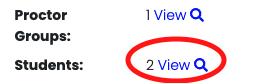
- Find the student in the list and click the TTS button. It will turn blue when it is enabled.

- Let the Proctor know that the student should refresh their lockdown browser. The TTS player should activate after the browser refresh.
Enabling TTS on the Student
Activating TTS on a Session is only affecting the student for a single session/test. Once you've taken care of the immediate issue to get the student testing with Text To Speech activated, you should go into the student's User record and make sure it is set with the TTS accommodation.
How do I add Text To Speech or other accommodations to a student?
If you found that TTS was already active on the student's User record and you are wondering why it wasn't active for the student during the test. There is a time delay between adding TTS to the student's User record and an update to the Administration.
Comments
0 comments
Please sign in to leave a comment.