
Students will be added to ADAM for you based on the TSDL Files provided to the state. If new students are added to your school or district, STC and DTCs have the ability to add them into ADAM.
- Log into ADAM www.adamexam.com
- Navigate to the Rostering menu, then click Users.
- Click the Create New button in the top right of the page.
- Fill out
- Given Name with the student's First Name.
Use proper case 'Jeremy' - Family Name with the student's Last Name.
Use proper case 'Smith' - Role choose Student Role from the drop down list
- Identifier with the state student id of the student
This is a 10 digit number - Grades choose ONE grade from the drop down list for the student
- Given Name with the student's First Name.
-
- Org Scope choose the school the student is attending from the drop down list
The student should only be in a single school - Sourced ID with the state student id of the student
This is a 10 digit number and should match what you set in the Identifier field - Username leave blank
- User Email set this field to blank. We do not capture student email address
- Org Scope choose the school the student is attending from the drop down list
Do not use the Set Password feature.
Look on the left side of the User Setup page to set Accommodations and Classes
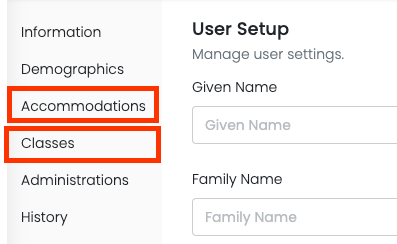
-
- Accommodations set the check box if the student has a Text To Speech accommodation
- Classes search to add a new class to a student or remove the existing class - If the search for classes doesn't return any results, please contact support at 1-855-866-5778 to have the class added to the student for you.
- Press the Save button
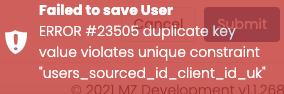
If you receive this error message when you try saving the student record...it is because the student already exists in a different school district. Please call customer support at 1-855-866-5778 to have them move the student into your district. Then you can update their classes.
Comments
0 comments
Please sign in to leave a comment.