
Not all ADAM users have access to this function.
You can enable the Text To Speech (TTS) accommodation for student for a single test session in the Proctor Dashboard or enable TTS permanently in the student's User record.
Enabling TTS for a Single Session
- Go to Test Management > Administrations or Test Management > Deliveries or Administrations.
- Search for the administration the student is taking.
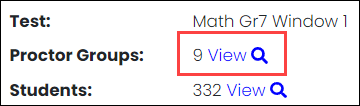
- Click the View link next to Proctor Groups.
- Search by the student's name to find the Proctor Group, and then click Proctor in the Actions column of the proctor group row. This opens the Proctor Dashboard.
Note: If this is the first time you have accessed the Proctor Dashboard, you will need to enter your first and last name. Don't worry—the actual proctor can change this later.
- Find the student that needs TTS enabled. Use the toggle in the TTS column to enable or disable TTS.
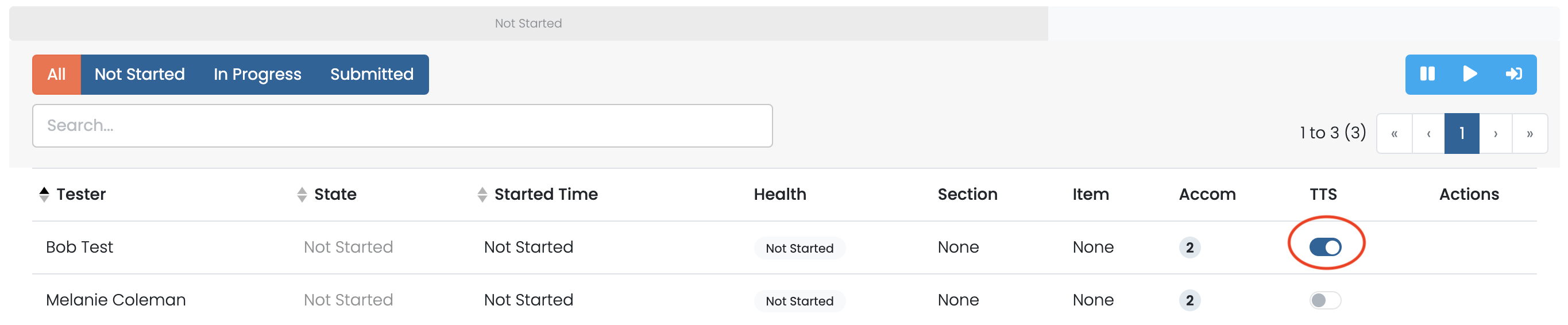
- The student may need to refresh their browser or log out of the lockdown browser (get reseated) and log back into the test to see the TTS player.
Enabling TTS Permanently
Activating TTS from the Proctor Dashboard can be configured to only works for a single session/test or it can update both the single session/test and the student's permanent user record. Check with your administrator if you aren't sure if you need to manually set the user record.
After you've taken care of the immediate issue, go to the student's user record and make the TTS accommodation is enabled.
- Go to Rostering > Users.
- Search for the student, and then click the Edit icon for that student.
- Click the Accommodations tab, and the select the Text To Speech checkbox.
- Click Save.
Note: It can take up to 30 minutes for changes to accommodations to appear in an Administration (test session).
Comments
0 comments
Please sign in to leave a comment.